How to Fix Face ID on iPhone: Complete Troubleshooting Guide
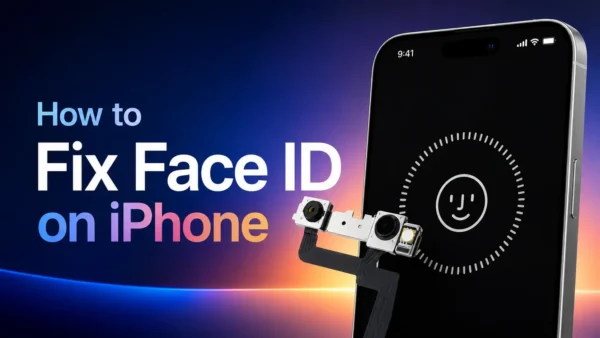
How to fix Face ID on iPhone is one of the most common questions users ask after their device suddenly stops recognizing their face or displays a “Face ID Not Available” message. The issue can appear after an iOS update, a screen replacement, an accidental drop, or even without an obvious cause.
While it’s easy to assume the TrueDepth camera has failed, that’s not always the case. Many Face ID problems are caused by software settings, outdated iOS versions, or minor issues that can be resolved in just a few minutes. However, persistent failures may point to damaged hardware that requires professional diagnosis.
In this guide, we’ll walk through the most common causes of Face ID failures, practical troubleshooting steps you can try yourself, and the situations where a repair is the only reliable solution.
Quick Answer: How to Fix Face ID on iPhone
If your Face ID isn’t working, try these solutions in order:
- Clean the TrueDepth camera.
- Remove thick screen protectors or cases covering the notch.
- Restart your iPhone.
- Update to the latest version of iOS.
- Verify Face ID is enabled in Settings.
- Reset Face ID.
- Set up Face ID again.
- Inspect your iPhone for signs of physical or water damage.
- If Face ID still fails, the TrueDepth camera system may require professional repair.
Most software-related issues can be resolved within minutes. If none of these steps work, the problem is often hardware-related.
Why Is the Face ID on My iPhone Not Working?
Understanding the cause makes it much easier to decide whether the issue is something you can fix yourself or whether your iPhone needs repair.
Face ID depends on Apple’s TrueDepth camera system, which includes several precision components working together:
- Dot Projector
- Infrared Camera
- Flood Illuminator
- Proximity Sensor
- Ambient Light Sensor
- Front Camera
When you look at your iPhone, thousands of invisible infrared dots are projected onto your face to create a secure three-dimensional depth map. If any of these components are blocked, disconnected, damaged, or improperly installed during a repair, Face ID may stop functioning.
The most common reasons include:
- Dirt or debris covering the TrueDepth camera
- Incorrect Face ID settings
- Software bugs after an iOS update
- Physical damage after dropping the phone
- Water damage affecting internal sensors
- Damage during a screen replacement
- Faulty or disconnected front sensor flex cable
- Failure of the Dot Projector or Flood Illuminator
Common Face ID Problems and Their Solutions
| Problem | Possible Cause | Recommended Solution |
|---|---|---|
| Face ID not available | Software issue or hardware fault | Restart iPhone and update iOS |
| Face ID doesn’t recognize your face | Dirty sensors | Clean the TrueDepth camera |
| Unable to complete Face ID setup | Damaged camera module | Inspect for hardware damage |
| Face ID stopped after screen replacement | Front sensor flex cable issue | Professional diagnosis |
| Face ID stopped after water damage | Corroded components | Hardware repair |
| Face ID works intermittently | Sensor alignment issue | Reset Face ID and inspect hardware |
How to Fix Face ID on iPhone
If you’re wondering how to fix Face ID on iPhone, start with the easiest solutions before assuming hardware damage.
1. Clean the TrueDepth Camera
The TrueDepth camera is extremely sensitive.
Check for:
- Dust
- Fingerprints
- Dirt
- Thick tempered glass
- Protective cases covering the notch
Use a microfiber cloth to gently clean the sensor area.
2. Make Sure Face ID Is Enabled
Sometimes Face ID is simply disabled.
Go to:
Settings → Face ID & Passcode
Verify Face ID is enabled for:
- iPhone Unlock
- Apple Pay
- Password AutoFill
- App Authentication
3. Restart Your iPhone
Restarting clears temporary software glitches affecting Face ID.
After rebooting, test:
- Unlocking your iPhone
- Apple Pay
- Banking apps
- Password autofill
4. Update to the Latest Version of iOS
Apple regularly fixes Face ID-related bugs through iOS updates.
Go to:
Settings → General → Software Update
Install any available updates before continuing.
5. Reset Face ID
If recognition has become unreliable, resetting Face ID often restores normal performance.
How to Reset Up Face ID on iPhone
- Open Settings
- Tap Face ID & Passcode
- Enter your passcode
- Tap Reset Face ID
- Confirm
- Continue with a new setup
Resetting removes the stored facial profile but does not erase your personal data.
6. Set Up Face ID Again
After resetting, you’ll need to configure Face ID from scratch.
How to Set Up Face ID on iPhone
- Open Settings
- Select Face ID & Passcode
- Tap Set Up Face ID
- Hold the phone about 10–20 inches (25–50 cm) from your face.
- Slowly rotate your head to complete the first scan.
- Repeat for the second scan.
- Tap Done.
Proper lighting and a clear view of your face improve setup accuracy.
How to Set Up Face ID on iPhone 16
If you’ve recently upgraded, you may be wondering how to set up Face ID on iPhone 16.
The setup process is almost identical to previous iPhone generations, although newer models feature faster facial recognition and improved machine learning.
For the best results:
- Keep the phone at eye level.
- Avoid direct sunlight during setup.
- Remove sunglasses if they block infrared light.
- Complete both scanning circles without rushing.
If setup repeatedly fails, hardware damage may be preventing the TrueDepth camera from functioning correctly.
Why Face ID Stops Working After a Screen Replacement
One of the most common searches is “why is the Face ID on my iPhone not working after replacing the screen?”
Many users assume the replacement display itself is responsible, but the display is often only part of the story.
Face ID problems after repair are usually caused by:
- Torn front sensor flex cable during disassembly
- Damaged earpiece speaker assembly
- Misaligned TrueDepth camera
- Damaged Flood Illuminator
- Improper transfer of original components
- Accidental damage to the Dot Projector
Because Apple’s Face ID hardware is paired with the logic board, replacing certain components without specialized repair techniques can permanently disable Face ID functionality.
For professional repair shops, using high-quality replacement screens and carefully transferring the original front sensor assembly is essential for preserving Face ID performance.
Can You Fix Face ID Yourself?
The answer depends on the cause.
| Situation | DIY Fix? |
| Face ID disabled in Settings | Yes |
| Software bug after update | Yes |
| Dirty TrueDepth camera | Yes |
| Need to reset Face ID | Yes |
| Screen replaced incorrectly | Sometimes |
| Water damage | Usually No |
| Dot Projector failure | No |
| Flood Illuminator damage | No |
If basic troubleshooting doesn’t resolve the issue, professional diagnosis is usually required.
How to Prevent Future Face ID Problems
Although not every failure can be avoided, these habits can reduce the risk:
- Keep the notch area clean.
- Use a quality protective case.
- Avoid exposing your iPhone to moisture.
- Install premium replacement screens that maintain proper sensor alignment.
- Have repairs performed by experienced technicians.
- Never force the front sensor flex cable during disassembly.
Preventive care helps extend the lifespan of the TrueDepth camera system and reduces the likelihood of costly repairs.
Frequently Asked Questions
Why is the Face ID on my iPhone not working after a screen replacement?
The front sensor assembly or flex cable may have been damaged or improperly transferred during the repair. Face ID components are closely paired with the logic board, making careful handling essential.
How do I reset Face ID on my iPhone?
Go to Settings → Face ID & Passcode → Reset Face ID, then follow the on-screen instructions to set it up again.
Can I fix Face ID without resetting my iPhone?
Yes. Cleaning the TrueDepth camera, restarting the device, updating iOS, or checking your Face ID settings may solve the problem without resetting the phone.
Does replacing the screen disable Face ID?
Not necessarily. A properly performed screen replacement that preserves the original TrueDepth camera components should not affect Face ID. However, accidental damage to the front sensor assembly during repair can prevent Face ID from working.
Can water damage permanently break Face ID?
Yes. Water can corrode the delicate components inside the TrueDepth camera system, including the Flood Illuminator and infrared camera, which may require professional repair.
How do I set up Face ID on iPhone 16?
Open Settings → Face ID & Passcode → Set Up Face ID, then complete the two scanning circles by slowly moving your head while holding the device at eye level.
Final Thoughts
Learning how to fix Face ID on iPhone starts with identifying whether the problem is caused by software, settings, or hardware. In many cases, cleaning the TrueDepth camera, updating iOS, or resetting and setting up Face ID again is enough to restore normal operation.
However, if you’ve tried every troubleshooting step and still wonder why the Face ID on your iPhone is not working, especially after a screen replacement, accidental drop, or water exposure, the issue is likely hardware-related. The TrueDepth camera system is one of the most sophisticated components inside an iPhone, and repairing it often requires specialized tools and expertise.
For repair professionals, preserving Face ID functionality depends on careful handling of the original sensor assembly and the use of high-quality replacement parts. Investing in reliable components and proper repair procedures not only reduces repeat repairs but also ensures customers continue to enjoy the seamless security and convenience that Face ID provides.