跳到内容
跳到内容 
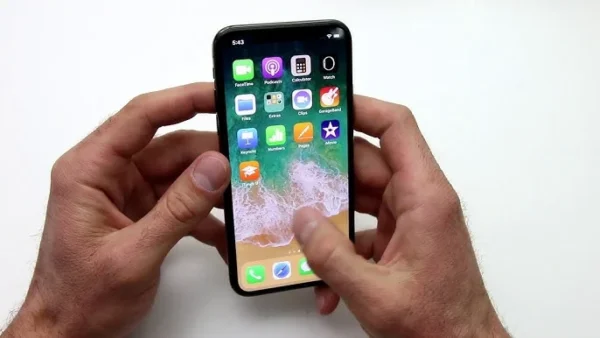
iPhone screen unresponsive issues are among the most common problems faced by users and technicians alike. When your iPhone suddenly stops reacting to touch or shows delayed response, it can interrupt daily use and even make the device unusable. Understanding why the iPhone touch screen becomes unresponsive and learning how to fix an iPhone screen that is unresponsive can help you quickly diagnose whether it’s a temporary software glitch or a deeper hardware problem. This guide examines why your iPhone screen is not responding to touch and how to fix an iPhone screen that is unresponsive, from both user-level and technician-level perspectives.
Common Causes of iPhone Screen Unresponsive Issues
1. Software Glitches and iOS Issues
One of the most common culprits is a software glitch—especially after iOS updates or when incompatible replacement parts interact incorrectly with system firmware. If you’re wondering why is my iPhone screen not responding to touch, a software fault should be the first thing to check.
2. Physical Damage, Connector Faults and Replacement Issues
If the device has been dropped, exposed to liquid, or previously repaired, the digitizer assembly may be damaged or its flex cables not seated properly. This often results in an iPhone touch screen unresponsive scenario or a condition where the iPhone screen not responsive in certain areas. When aftermarket screens are used, the risk of improper fit or weaker quality digitizers increases.
3. Ghost-Touch and Static Electricity (Electrostatic/Interference Effects)
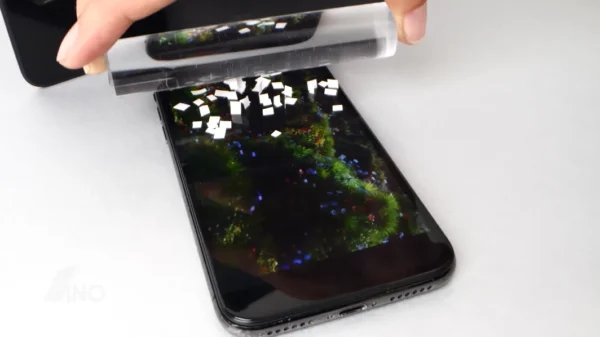
Another important cause to highlight: ghost-touch—when the screen picks up phantom touches, erratic input, or uncontrolled scrolling—often happens due to static electricity, electromagnetic interference, or a poorly grounded device.
Technical communities confirm that static build-up or unshielded digitizers can cause the capacitive touch layer to misinterpret signals. In other words: the issue may not be mechanical wear but electrical interference.
4. Logic-Board or Touch-IC Faults
When all basic components appear intact but the screen remains totally unresponsive (or only certain zones respond), the fault may lie on the logic board—specifically the touch controller IC or related circuitry. Older models like the iPhone 6 series show “touch disease” symptoms when flexing affects the touch-IC connectors.
How to Fix an iPhone Screen That Is Unresponsive
Here are proven steps—ranging from user-level tweaks to technician-level repair—addressing the typical keywords like how to fix iphone unresponsive screen, how to repair unresponsive touch screen, etc.
1. Restart or Force Restart the iPhone
Start simple. A forced restart often clears transient glitches:
- iPhone 8 or later: Press Volume Up → Volume Down → hold Side button until Apple logo appears.
- iPhone 7/7 Plus: Hold Volume Down + Side until restart.
- iPhone 6s and earlier: Hold Home + Side until restart.
If your screen begins to respond, software may have been the problem.
2. Clean the Screen and Remove External Accessories
Screen protectors, cases, or debris can hamper capacitive input. Remove any screen film, use a lint-free cloth, and test touch again. This addresses simple cases of iphone screen no touch response.
3. Update or Reinstall iOS
Go to Settings → General → Software Update. If up-to-date but problem remains, back up and restore iOS via iTunes/ Finder. This may fix how to fix iphone touch screen unresponsive when caused by corrupted system files or incompatibility with replacement parts.
4. Test for Ghost-Touch / Static / Interference
If your device is registering touches when you aren’t swiping, or only while charging or in a particular location, investigate ghost-touch and static. Remove the device from the charger, unplug all accessories, test in a different environment, and see if the problem resolves. Use certified chargers. Many issues originate from inaccurate touch input because of electromagnetic interference.
5. Inspect Screen Assembly & Flex Connectors (Technician Level)
If your device was disassembled or previously repaired, open it to:
- Check the display flex cable connectors for proper seating.
- Inspect for bent pins or damage to the digitizer ribbon.
- Ensure the screen assembly is fully compatible (OEM or high-quality aftermarket).
Improper installation is a frequent cause of iphone screen non responsive or partial response.
6. Replace the Display Module
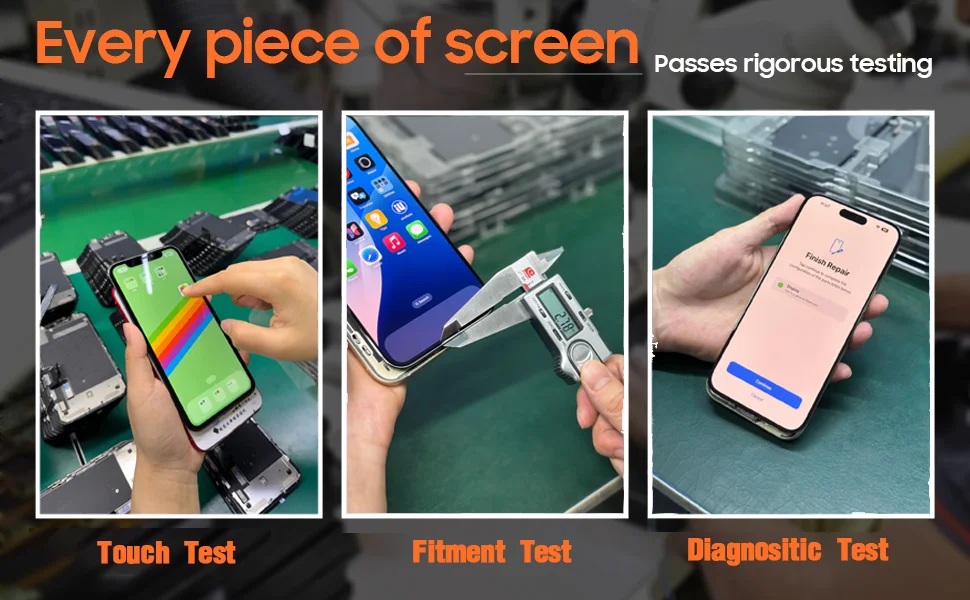
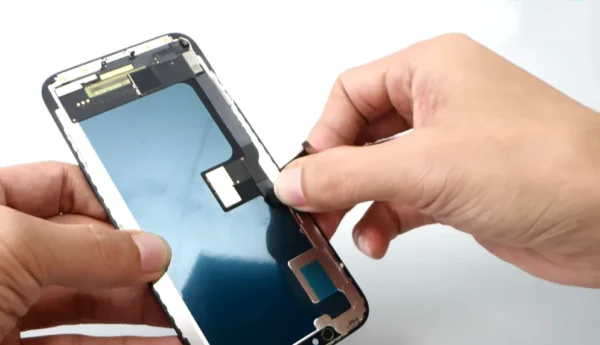
If all else fails and the screen itself is faulty, replace with a quality display that includes the digitizer. Ensure the replacement has proper shielding against static and meets original specifications—this is critical to avoid repeat issues of iphone unresponsive touch screen.
7. Logic Board / Touch-IC Repair
When the screen changes had no effect and the problem persists, the root may be on the logic board (e.g., Touch-IC failure). Symptoms may include single-zone non-responsiveness, flickering, or repeated touch failures. This requires micro-soldering or board-level diagnostics and is best handled by experienced professionals.
When to Seek Professional Help
If you have followed the steps above and are still wondering how to fix a touch screen iPhone but the screen remains totally unresponsive, or is showing ghost touches, or you suspect liquid damage/logic issues—then it’s time for a professional service. Complex problems such as Touch-IC failure or electromagnetic interference need specialized equipment and expertise.
Conclusion
An iPhone screen not responding to touch can stem from something as simple as a software crash or as complex as a Touch IC failure. By understanding each cause—from ghost-touch and static electricity interference to connector faults and logic board damage—you can troubleshoot efficiently and minimize repeat failures.
For repair technicians, always ensure static safety and use reliable, well-tested components. Wellworth Tech provides a complete selection of iPhone replacement screens and precision repair tools that meet professional repair standards, helping technicians achieve accurate and stable results in every repair job.