跳到内容
跳到内容 
If you’ve ever asked “why is my iPhone battery draining fast”, you’re not alone. Many iPhone users notice faster power loss after updates or with everyday use. While Apple improves battery efficiency with every iOS release, real-world battery life depends on a mix of software behavior, device settings, daily habits, and iPhone battery health. Understanding what drains your battery and how to manage it can make a noticeable difference in how long your device lasts each day.
How iPhone Batteries Work and What Causes iPhone Battery Draining Fast
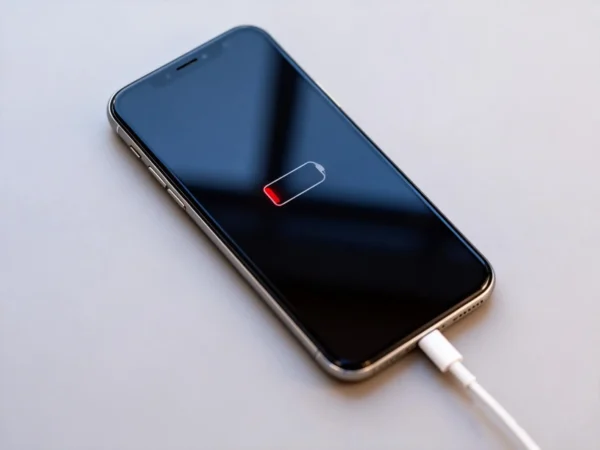
All modern iPhones use lithium-ion batteries that naturally lose capacity over time. Each full charge cycle slightly degrades the battery’s ability to hold a charge. When the battery’s maximum capacity drops, the phone will run out of power sooner, even with moderate usage.
In addition, system processes introduced with new iOS26 can temporarily increase battery use. After an update, iOS may re-index files, refresh libraries, and rebuild caches in the background, which can make the battery drain faster than usual for a day or two while the system settles in.
Other common underlying causes include:
-
Battery aging and reduced iPhone battery health
-
Apps and services running in the background
-
Wi-Fi, cellular radios, and location services actively searching for signals
-
Display brightness and screen-on time
These factors combine to influence how quickly your iPhone battery depletes.
iOS26 and Its Impact on Battery Life
After updating to iOS26, many users report that their iPhone battery life seems shorter than before. This can be due to several software-related reasons:
System Activity After Update
After a major update, background tasks like spotlight indexing and photo scanning may increase CPU use for hours or even days, leading to faster battery drain in the short term.
Adaptive Power Mode and Power Management
iOS26 introduces smarter power management tools such as Adaptive Power Mode, designed to learn your usage patterns and reduce battery use when appropriate. Turning this feature on under Settings → Battery → Power Mode can help extend your battery life without much change in performance.
New Features and Visual Effects
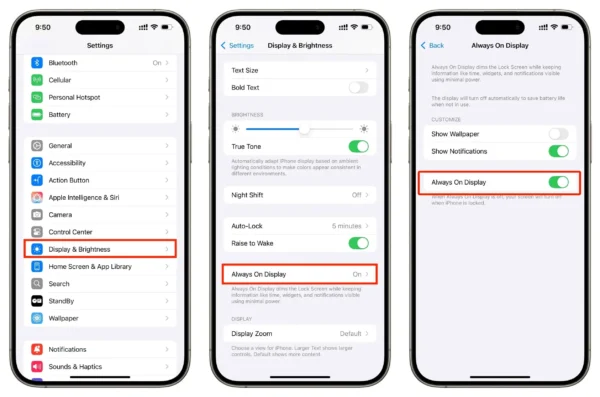
Visual enhancements in iOS26, such as more dynamic animations or always-on displays (on supported devices), can add to power usage. Reducing these effects in settings may help reduce drain.
Common Settings That Make Your iPhone Battery Drain Fast
Some iPhone settings are friendly to convenience but unfriendly to battery life. Adjusting these can significantly improve daily battery performance:
Background App Refresh
Apps updating content in the background can consume power even when you’re not actively using them. Turning this off or limiting it to Wi-Fi only reduces unnecessary battery use.
Location Services
Apps with constant access to GPS can drain battery quickly. Limiting location access to “While Using” or disabling it for less important apps helps conserve energy.
Display Brightness and Auto-Lock
The screen is one of the biggest consumers of power. Lower the brightness and shorten the Auto-Lock time to reduce screen-on battery drain.
Notifications and Fetch Settings
Frequent notifications and push email fetching require the phone to wake and check for updates, which uses power. Reducing notification frequency and mail fetch intervals can help.
How iPhone Battery Health Affects Drain
Your iPhone battery health directly influences how long a charge lasts. You can check this under Settings → Battery → Battery Health. A lower health percentage means the battery holds less charge and could drain faster during normal use.
When battery health falls below a certain point (often around 80%), you may notice that your phone doesn’t last as long as it used to, even with normal usage. In these cases, it may be worth considering whether to replace iPhone battery to restore better performance and longer daily battery life.
Apple’s official guidelines also note that battery wear and poor health contribute to shorter battery life and eventual performance limitations.
Best Practical Tips to Slow Down Battery Drain
Here are reliable tips based on common user experiences and battery behavior insights:
Use Low Power Mode when battery is low or on busy days. This mode reduces background activity like mail fetch and automatic downloads.
Enable Wi-Fi where possible, as cellular radios use more power, especially in low coverage areas.
Turn off always-on display (if available) and reduce visual effects for a more efficient display.
Regularly update your apps and iOS version. Developers often release updates that improve efficiency and reduce battery usage.
Restart your iPhone occasionally to clear glitches and excessive background processes, which may contribute to battery drain.
Summary
Understanding of why your iPhone Battery Draining Fast can help you manage the issue without panic. The key points are:
-
iPhone battery draining fast has multiple causes, including software behavior, system processes, and personal usage patterns.
-
iOS26 may increase drain temporarily after an update, but offers new battery management tools.
-
Several settings—such as background refresh, location services, notifications, and brightness—can be adjusted to reduce drain.
-
Monitoring iPhone battery health helps you know whether the battery’s capacity itself is a reason for faster drain.
-
In cases of significant battery wear, it may be appropriate to replace iPhone battery to restore usable battery life.
Understanding these factors allows you to balance performance, convenience, and battery longevity for your daily iPhone use.